
GoHighLevel Payment Integration: How to Automate Payments, Invoices, and Follow-Ups
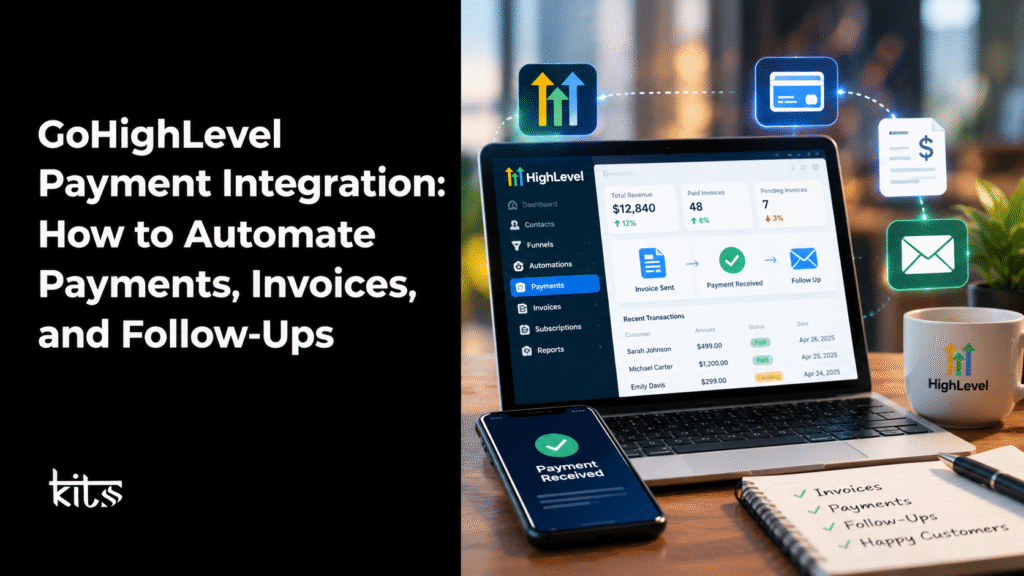
Handling payments shouldn’t feel like a wild goose chase, right? You shouldn’t have to constantly check your inbox, chase clients, or keep track of unpaid invoices by hand.
In businesses like agencies, coaching, or consulting, manual billing eats up a ton of time time you’d rather spend growing your business or keeping clients happy.
And, when your payment process and CRM aren’t synced, you can easily overlook invoices, miss follow-ups, or lose track of who’s paid.
That’s where GoHighLevel payment integration steps up. By connecting your payment gateway to your CRM, you can tie together everything from invoices and sales funnels to automated workflows.
It makes the whole billing cycle smoother send invoices, track payments, follow up automatically.
This guide breaks down how GoHighLevel’s payment integration works, ways to automate invoices and reminders, key workflows to set up, and how KITSS can help tailor it for your business.
What Is GoHighLevel Payment Integration?
GoHighLevel payment integration connects your payment provider right into your GoHighLevel account. You can collect payments directly from checkout pages, order forms, payment links, and invoices, all within your CRM.
So, you don’t have to shuffle between platforms anymore. Customer details, billing, and automation are all under one roof. Depending on how your account is set up, you’ll be able to:
- Take payments through supported checkouts.
- Send invoices to customers in just a few clicks.
- Set up recurring billing for ongoing work or retainers.
- Automatically confirm payments and alert your team.
- Trigger workflows based on payment success or failure.
- Keep payment history linked with customer records.
- Cut down manual work for invoicing and follow-ups.
Of course, available features depend on your payment gateway, region, account setup, and the kind of payment experience you’re building.
Why Businesses Need Payment Automation
Most businesses have their sales process nailed, but payments? That’s where things get messy.
A client can book a call, agree to your service, but then waits for an invoice. Someone has to make it, send it out, remember the due date, and chase the payment. Multiply that by dozens of clients and you get a headache.
Multiply that process across dozens of clients, and billing can quickly become an operational headache.
Here are some common problems payment automation can help address.
| Common problem | How automation helps |
|---|---|
| Invoices are sent late | A workflow can trigger invoice delivery when a defined event occurs. |
| Payment reminders are forgotten | Scheduled follow-ups can remind customers about outstanding invoices. |
| Customers don’t know what happens next | Automated confirmations explain the next step after payment. |
| Recurring clients need repeated billing | Recurring invoices can support eligible billing schedules. |
| Sales and billing records are disconnected | Invoice and opportunity records can be linked where supported. |
| Teams manually update customer records | Workflows can automate suitable tags, notifications, and follow-up actions. |
Automation won’t eliminate every billing issue, but it can make routine processes more consistent and easier to monitor.
How Does GoHighLevel Payment Integration Work?
Generally, the payment automation process looks like this:
- Connect your payment gateway set up your provider in GoHighLevel.
- Set up your payment experience build the invoice, checkout, or order form.
- Pick a workflow trigger like when an invoice is created or payment is received.
- Add actions confirmation emails, internal notifications, tags, follow-ups.
- Test everything make sure payments and notifications work as planned.
For example, when a customer pays, GoHighLevel can send a confirmation email, notify your team, and kick off onboarding. The goal is to connect billing right into the customer journey—not treat it as a separate job.
Setting Up GoHighLevel Payment Integration
Setup changes based on your provider and business needs, but here’s the basic blueprint:
Step 1: Connect Your Payment Gateway
Log in, head to Payments, and pick your payment provider. Stripe’s popular, but others may be available depending on location.
Double-check:
- Your eligibility with the provider.
- The payment methods and currencies supported.
- Whether you can do recurring payments.
- What fees or verification requirements apply.
- f the integration matches your intended checkout or invoice workflow.
Note: Hooking up a gateway doesn’t set everything for you. You’ll still need to create invoice templates, payment settings, triggers, and customer communications.
Step 2: Configure Products and Payment Options
Set up the products or services you’re charging for. For example, a marketing agency could have:
- One-off web development projects.
- Monthly SEO retainers.
- CRM implementation packages.
- Subscription automation support.
Sort out pricing, billing frequency, taxes, and make sure each service is clear for the customer.
Step 3: Create Your Invoice Template
Go to Invoices under Payments and build your invoice. Add customer info, product details, pricing, payment terms, and any taxes. Choose how you want to send invoices email or SMS.
Before you send it out for real, preview the invoice. Double-check all amounts, dates, and instructions.
Step 4: Build an Invoice Automation Workflow
This is where automation shines. Instead of manually sending invoices, use a workflow to deliver invoices when certain business events happen.
Example:
Trigger: Deal hits billing stage.
Action 1: Send invoice using your template.
Action 2: Notify account manager.
Action 3: Message customer about payment and deadline.
Action 4: Follow up/remind based on invoice status.
Use “Send Invoice” for one-time payments. For recurring billing, set up recurring-invoice actions.
Step 5: Automate Payment Confirmations
Your clients shouldn’t wonder if their payment went through. Set up a workflow for payment events, so once a payment lands:
- Send a confirmation email to the customer.
- Notify the team member assigned.
- Update tags or workflow statuses.
- Kickstart onboarding if needed.
- Set tasks for the next steps.
Only send confirmations for successful payments. Test everything carefully, especially if your workflow relies on specific payment types or statuses.
Step 6: Test Everything Before You Go Live
Before switching a workflow to live operation, test the full process from trigger to final action.
Check that:
- The correct invoice template is selected.
- The intended customer receives the invoice.
- Amounts, due dates, and payment options are correct.
- Successful payments trigger the right confirmation.
- Failed payments do not trigger successful-payment messages.
- Reminder messages stop or change when the relevant invoice is paid.
- Internal notifications go to the correct team member.
Test mode is your friend! Make sure everything works with your gateway before running live transactions.
Automating Invoice Reminders in GoHighLevel
Chasing payments is awkward, but reminders help. Send them too soon and you risk annoying your client; too late and cash flow suffers. A scheduled reminder sequence keeps things consistent.
Example for an invoice due on the 15th:
| Timing | Suggested action | Purpose |
|---|---|---|
| When the invoice is issued | Send the invoice with clear payment instructions | Make the payment process straightforward |
| Three days before the due date | Send a polite reminder, if still unpaid | Help the customer prepare for the deadline |
| On the due date | Send a due-date reminder, if still unpaid | Reinforce the agreed payment date |
| Three days after the due date | Send a courteous overdue message | Encourage resolution |
| After a defined escalation period | Create an internal task for the account manager | Allow personal follow-up when needed |
Tweak these timings to fit your contracts and relationships.
Sample reminder:
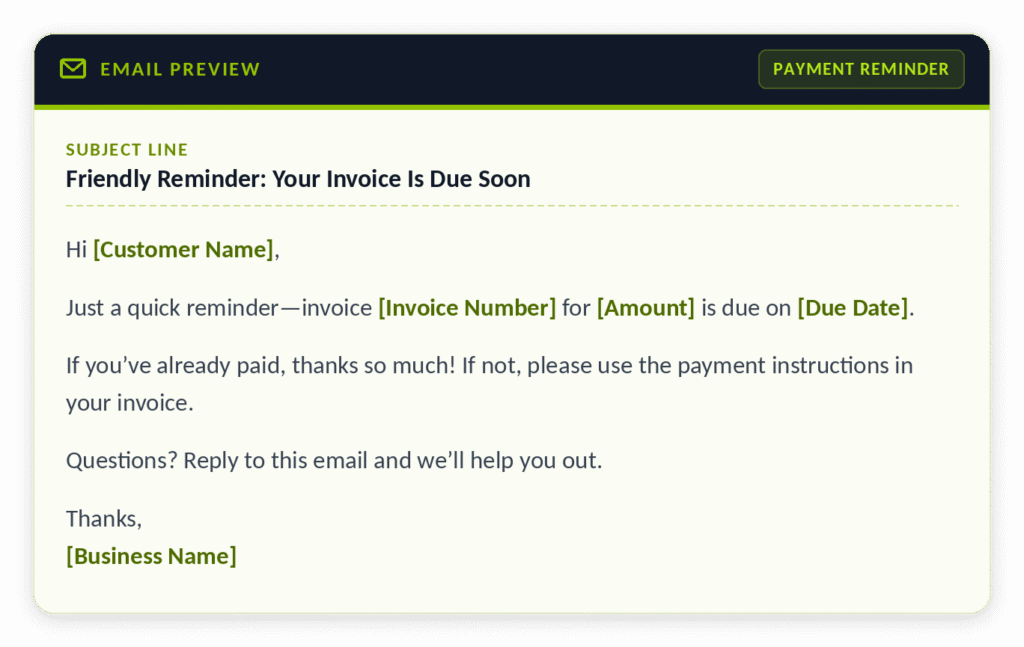
Only send when the invoice is unpaid. Make sure your workflow checks payment status before sending, and avoids looping customers into repeated reminders.
Recurring Payments and Invoices
If you bill clients regularly, recurring workflows save serious time.
Use cases:
- Monthly retainers.
- Ongoing CRM support.
- Memberships/coaching.
- Subscriptions.
- Installments (where supported).
GoHighLevel’s recurring-invoice actions let you pick billing frequency, start/stop dates, and how to deliver. Auto-payment options depend on the gateway.
A typical setup involves:
- Create invoice template.
- Connect payment gateway.
- Build workflow with the right trigger.
- Add recurring-invoice action.
- Set up schedule and stopping rules.
- Pick delivery channel.
- Test before launching.
If auto-pay is on, check how the payment provider handles the initial charge and saves payment info. Always get customer sign-off on recurring terms, billing frequency, and cancellation policies.
Five Workflows You Should Set Up In GoHighLevel
Once payments are integrated, sync billing with other parts of your process.
1. New Client Payment and Onboarding
Automate welcome emails, onboarding, and team notifications once payment lands.
2. Overdue Invoice Follow-Up
Send reminders for overdue invoices, and assign tasks if payment doesn’t come through.
3. Failed Payment Follow-Up
Notify customers about failed payments with clear instructions. Let the team know, too—track retries and successful follow-ups so messaging stays clear.
4. Recurring Client Billing
Manage recurring invoices and notifications for ongoing clients—especially handy for agencies with lots of retainers.
5. Payment-to-Sales Pipeline Updates
When payment comes in, update deal stages or notify project managers to get things moving. Make sure partial payments are tracked separately.
GoHighLevel Payment Integration: Best Practices
A solid payment workflow does more than send emails it keeps records accurate, maintains customer trust, and supports smooth billing.
Keep these practices in mind:
1. Use clear invoice descriptions. Customers should understand the service, amount, due date, and applicable payment terms.
2. Match the workflow to the transaction. A one-time purchase, recurring invoice, deposit, and failed subscription charge may require different actions.
3. Prevent duplicate messages. Use suitable workflow conditions and enrollment rules to avoid repeated reminders or confirmations.
4. Verify payment status before sending follow-ups. A customer who has already paid shouldn’t receive an overdue notice because a workflow failed to check the latest status.
5. Protect payment information. Use the payment provider’s approved mechanisms. Avoid storing sensitive card details in notes, custom fields, or unsecured spreadsheets.
6. Keep an eye on failed transactions. Automated messages can help customers resolve payment problems, but someone should be able to investigate recurring failures.
7. Review performance regularly. Monitor overdue invoices, failed payments, time to payment, and workflow errors to identify areas for improvement.
8. Check compliance requirements. Payment authorization, recurring billing consent, tax handling, privacy, and customer communications may be subject to local laws and provider policies.
Common GoHighLevel Payment Integration Problems
Even the best setup hits snags. If payments or workflows misbehave, these are the usual suspects:
| Problem | What to check |
|---|---|
| Payment gateway won’t connect | Verify account eligibility, authorization, and provider setup |
| Invoice isn’t sent | Check the trigger, selected template, sender, and workflow status |
| Payment confirmation doesn’t arrive | Review payment-event filters and workflow execution history |
| Reminder goes to a customer who has paid | Check payment-status conditions and whether the workflow refreshes that status |
| Recurring invoice isn’t generated | Review the billing schedule, start date, stop conditions, and gateway requirements |
| Duplicate reminders are sent | Review re-entry rules, delays, and conditions before each message |
| Invoice doesn’t appear against the expected deal | Check the relationship between the invoice and the relevant opportunity |
Features and settings change, so always check GoHighLevel’s official docs.
How KITSS Helps With GoHighLevel Payment Integration
Connecting your payment gateway is just the start. To make billing really work, you need everything payments, invoicing, communications, follow-ups clicking together.
KITSS helps businesses implement and optimize GoHighLevel around their actual workflows, from initial setup through automation and ongoing process improvements.
Depending on your requirements, KITSS can help with:
Payment gateway integration: Configure a suitable supported payment provider for your account and payment requirements.
Invoice automation: Set up invoice templates and workflow actions for appropriate billing events.
Automated reminders: Create customer-friendly follow-up sequences for invoices that remain unpaid.
Payment confirmations: Connect supported payment events to confirmation messages and internal notifications.
CRM and pipeline integration: Organize customer and opportunity records around the payment process
Workflow testing and optimization: Check triggers, conditions, message timing, and exceptions before workflows go live.
Broader GoHighLevel implementation: Connect billing with funnels, calendars, onboarding, email automation, and other relevant business processes.
The goal isn’t just to automate for automation’s sake. It’s to make the routine stuff run smooth, while keeping your billing clear and trustworthy.
If you’re getting started or struggling to tie payments into your processes, check out KITSS’s GoHighLevel services. Or contact KITSS and design a setup around your business, payment provider, and workflow needs.
Frequently Asked Questions
1. Can GoHighLevel integrate with payment gateways?
Absolutely. GoHighLevel works with several payment gateways, but what’s actually available depends on your region, the payment provider, and your account setup. You’ll see what you can use inside your account settings, so take a look before you decide on a payment method.
2. Can GoHighLevel send invoices automatically?
Yes, it can. You can set up workflows that create and send invoices whenever a certain trigger happens. Just make sure to pick the right template, sender, payment method, and how you want the invoice delivered.
3. Can I automate recurring invoices in GoHighLevel?
Definitely. There’s a recurring-invoice action in the workflow builder, so you can set the timing and any stop conditions you need. Automatic payments work if your connected payment gateway allows it, so double-check those details too.
4. Can GoHighLevel send automatic payment reminders?
Yep. You can set up workflows for payment follow-ups. To avoid spamming people, add a check so reminders only go out if the invoice is still unpaid.
5. Can GoHighLevel send a confirmation after payment?
Yes. When you use the Payment Received trigger in a workflow, GoHighLevel can send a confirmation and even take extra steps based on the payment that comes in. You just need to set up triggers and filters to match what you want to track.
6. Can I use GoHighLevel payment integration for my marketing agency?
Of course. Agencies can use payment workflows for one-off projects, recurring retainers, or whatever fits the way they charge for services. The best setup depends on how you price and bill clients.
7. Does payment automation replace accounting software?
Not really. GoHighLevel handles billing and payment tasks, but you’ll probably still want proper accounting software for things like bookkeeping, reconciliation, and taxes.
8. Can KITSS help set up GoHighLevel payment automation?
Yes, KITSS handles GoHighLevel setup including payment gateway integrations and workflow automation. The details depend on which gateways you use, your billing needs, and what other systems you already have.
Final Thoughts
GoHighLevel makes it easy to leave clunky, manual billing behind for a much smoother, automated process.
Set up a supported gateway, design your invoices, automate reminders, and connect payment events to your CRM workflows all of this cuts down on manual work and gives your clients a better billing experience.
Just remember, your workflows should mirror how your business actually runs. Test them, keep payment info up to date, and you’ll stay on top of things.
If you’re ready to bring invoicing, payment collection, and follow-ups into one neat system, KITSS is here to help you plan and launch the right GoHighLevel setup for your business.
Check out KITSS GoHighLevel Services and take the next step toward making billing simpler and more efficient.